
Install help
Installing the Steadywave app
Pick your device and follow the pictures — the orange circle shows where to click or tap. The Mac app is signed and notarized with Apple, so install is usually just drag-and-drop. The Windows app is signed by Naveh Solutions LLC. Android tablets with Google Play install from the Play Store; Amazon Fire tablets install from our APK. The iPad app is coming soon to the App Store.
Mac
macOS 12 or later · Apple silicon & Intel
Download for MacOpen the downloaded .dmg file (it’s in your Downloads folder), then drag Steadywave into Applications.
🌊
Steadywave→📁
ApplicationsIllustration
Open Applications and double-click Steadywave.
Note: The Mac app is signed and notarized with Apple, so you should not see an “Open Anyway” warning.
When Steadywave asks to use Bluetooth, click Allow.
Why: Bluetooth lets the app connect to your easy-to-use headset.
“Steadywave” would like to use Bluetooth.Don’t AllowAllowIllustration
Sign in with the same email and password you use for your client portal. You only need to do these steps the first time.
Windows PC
Windows 10 or 11 · 64-bit
Download for WindowsOpen the downloaded installer (it’s in your Downloads folder).
Follow the installer. Steadywave appears in the Start menu.
Note: The Windows app is signed by Naveh Solutions LLC, so you should not see an “unrecognized app” or “Run anyway” warning.
When Steadywave asks to use Bluetooth, click Allow (or Yes).
Why: Bluetooth lets the app connect to your easy-to-use headset.
Sign in with the same email and password you use for your client portal. You only need to do these steps the first time.
Android tablet
Android 8 or later · Google Play (Amazon Fire uses the APK below)
Get it on Google PlayOn your tablet, open the Google Play listing for Steadywave and tap Install.
When it finishes, tap Open.
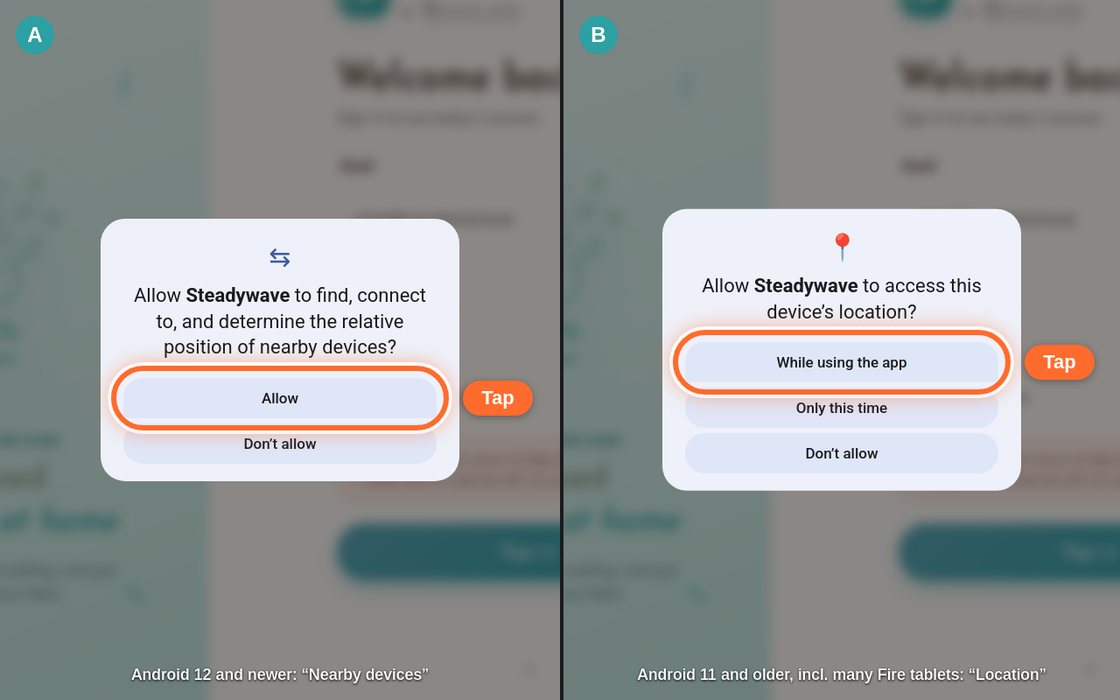
When asked about Nearby devices, tap Allow. On older tablets it asks for Location instead — tap While using the app.
Why: this is needed only to find your easy-to-use headset over Bluetooth. Steadywave doesn’t track where you are.
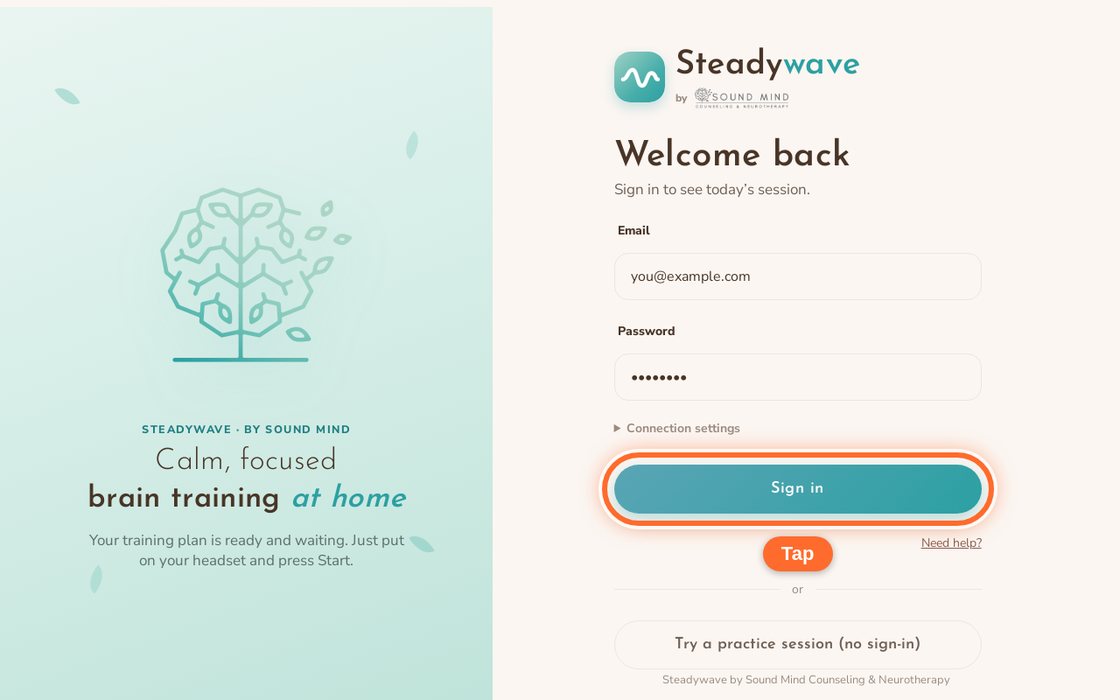
Sign in with the same email and password you use for your client portal.
Amazon Fire tablet
Fire tablets don’t use Google Play, so install from our APK instead.
Download the APK for FireOn your Fire tablet, tap Download the APK for Fire above.
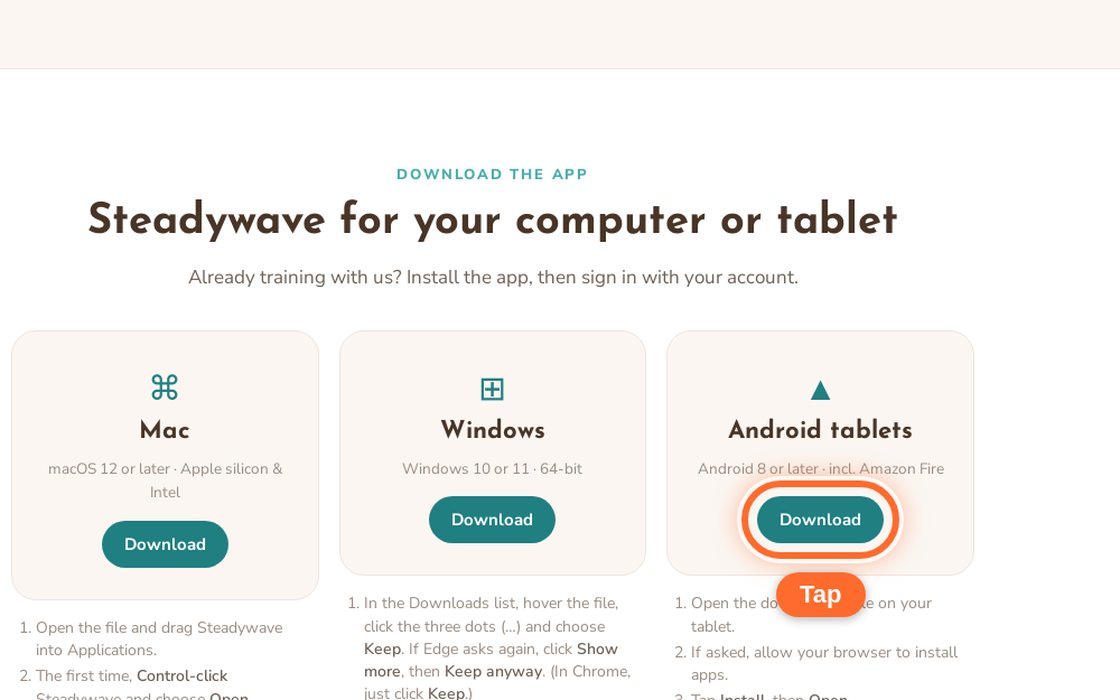
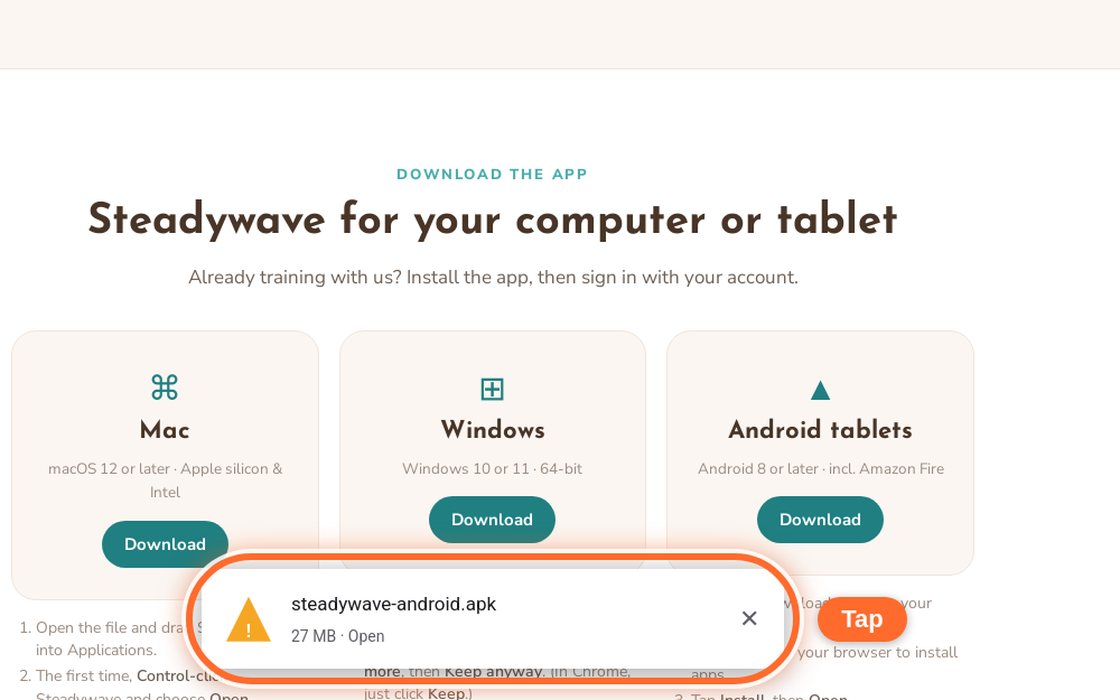
When it finishes, tap steadywave-android.apk to open it. (Or find it in Files › Downloads.)
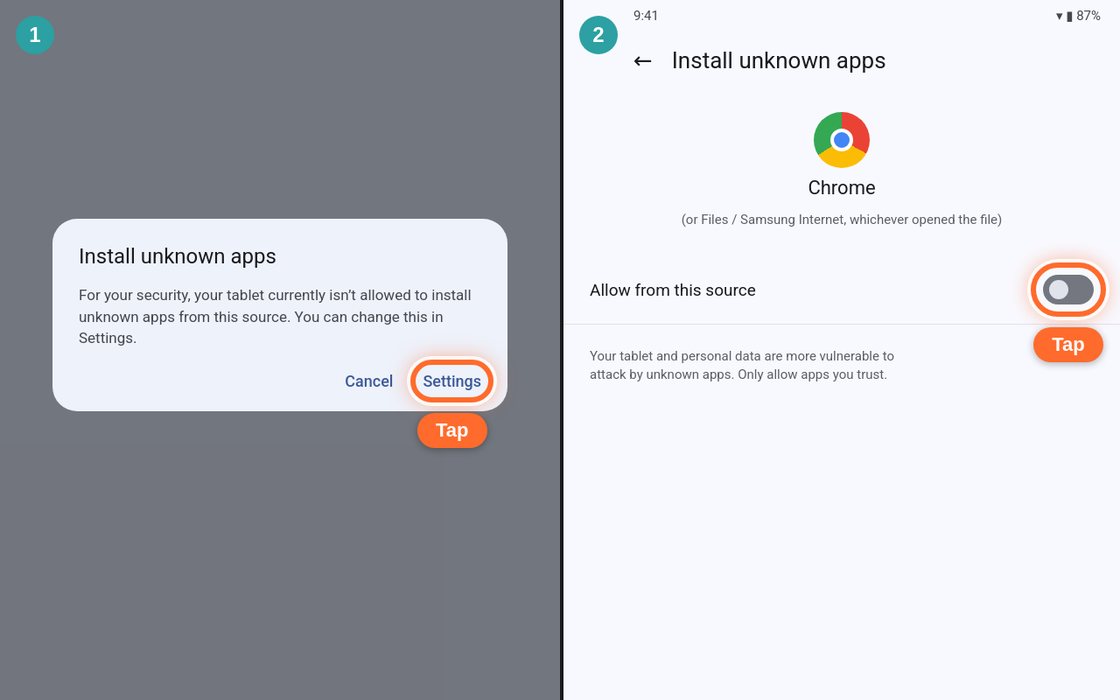
If your tablet says it can’t install unknown apps, tap Settings, turn on Allow from this source, then go back.
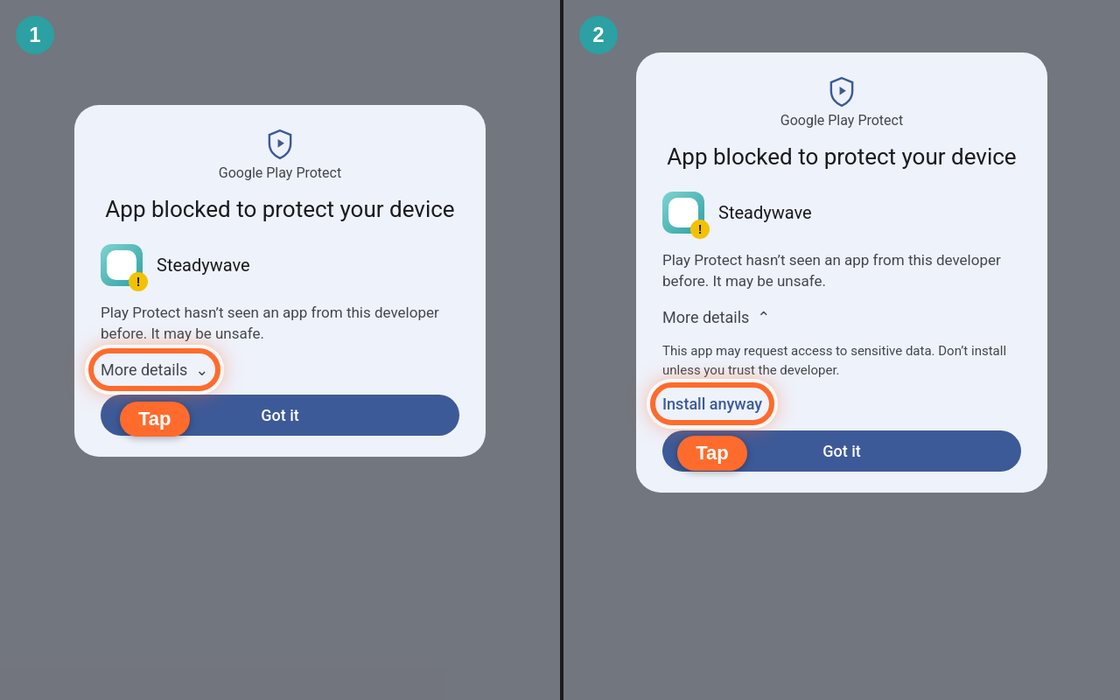
If Google Play Protect warns you, tap More details, then Install anyway. Then tap Open.
When asked about Nearby devices (or Location on older tablets), tap Allow / While using the app, then sign in with your client portal email and password.
iPad Coming soon to the App Store
iPadOS 16 or later
The iPad app is in review with Apple. When it’s available, you’ll be able to install Steadywave from the App Store, then sign in with the same email and password you use for your client portal. We’ll add the App Store link here as soon as it is live.
↑ Pick a different deviceStill stuck?
Call us at 704-237-0608, or ask your coach at your next session. We’re happy to walk you through it.